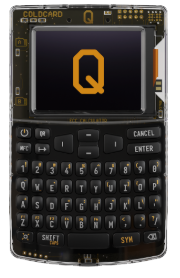
Coldcard Wallet Setup Guide
To set up a Coldcard, buy it from Coinkite or an official reseller, check the sealed bag and its unique number, power the device on (a USB power bank keeps it off your computer), confirm the bag number on screen, create a two-part PIN and note the anti-phishing words, update the firmware, generate a new 24 word seed phrase and write it down on paper, then connect it to desktop wallet software such as Sparrow using a microSD card. Coldcard is Bitcoin-only and built to stay air-gapped. The key points:
- If the bag number on screen does not match the bag, do not use the device.
- Remember your PIN: too many wrong attempts permanently disables the Coldcard.
- Your 24 words are the real backup; store them offline, ideally on metal.
- Always confirm addresses and amounts on the Coldcard’s own screen.
Moneysmart’s overview of crypto assets explains the risks of holding crypto yourself, and its guide to investment scams shows how fake apps and support scams work.
This is your complete Coldcard wallet setup guide, from pre-unboxing checks to full activation.
Shepley Capital is in no way affiliated with Coldcard or Coinkite. Be sure to choose the hardware wallet that is right for you.
1. Before You Unbox Your Coldcard
Coldcard is a Bitcoin-only, security-first hardware wallet. Because of this, you must start with strict authenticity checks.
Buy only from trusted sellers. Purchase directly from Coinkite, the company that makes Coldcard, or an official reseller. Never buy from marketplace sellers or second-hand.
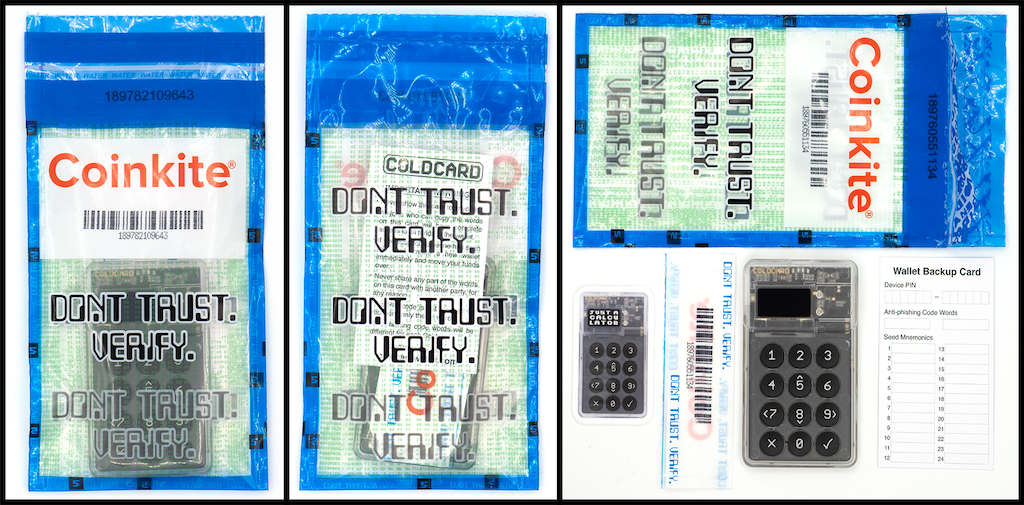
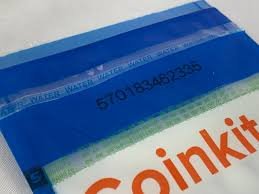
Inspect the packaging before cutting it open. Coldcard ships in a sealed, tamper-evident bag. Check that:
- The bag is sealed all the way around.
- There are no cuts, re-sealed edges or signs of tampering.
- Nothing inside looks disturbed.
If anything looks off, contact Coinkite through its official website first.
Note the unique bag number. Each Coldcard bag has a printed, unique number. You’ll check it on the device later, which helps confirm it has not been swapped. Do not open the bag until you have confirmed it is untouched. The wider steps to verify a hardware wallet is genuine apply to every brand.
2. Unboxing Your Coldcard
Inside the sealed bag you should find:
- The Coldcard device.
- A cable (depending on model).
- A wallet backup card.
- Stickers and a quick start slip.
Coldcard always ships without a pre-generated seed. If you see a printed seed phrase or a card with words already filled in, stop using the device immediately: it is a classic tampered-device scam.
3. Powering On Your Coldcard
Coldcard can be powered in two ways:
- Plugged into a computer by USB.
- Air-gapped, with a power source only, such as a USB power bank.
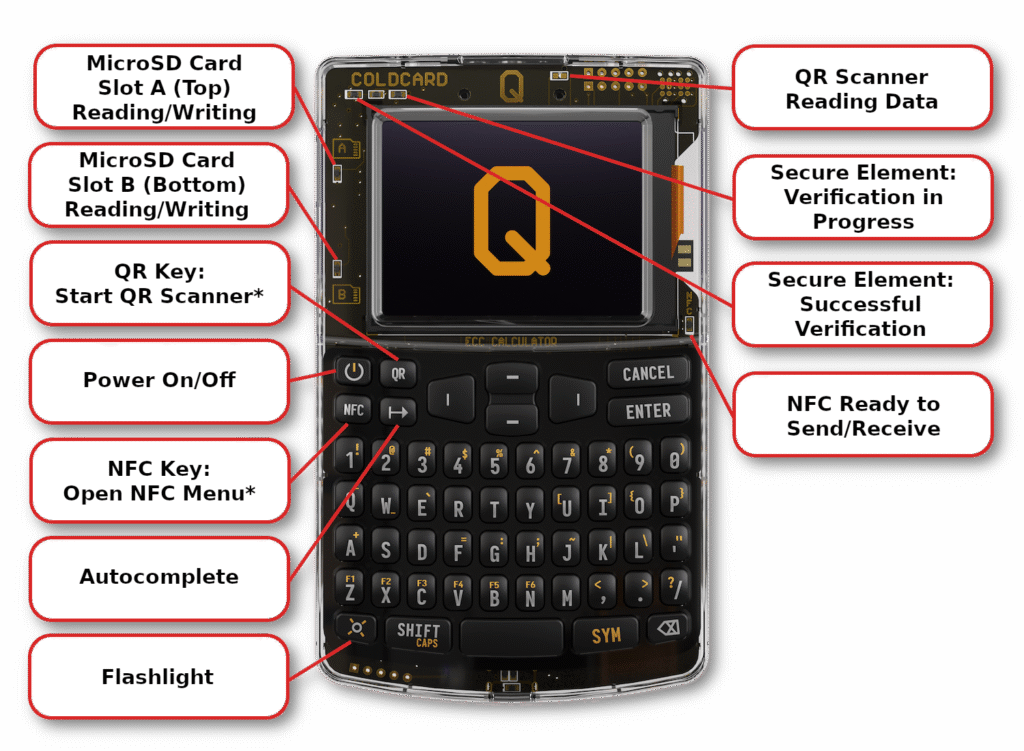
For the safest setup, many users power it with a power bank so that it never connects to a computer. Turn it on and wait for the welcome screen. Using the device without a data connection is what air-gapped means: the private keys never travel over a cable or network.
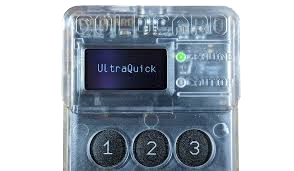
4. Verify the Bag Number
Coldcard has a simple anti-tamper check. When you turn the device on for the first time:
- Coldcard displays the bag number on its screen.
- Compare it with the number printed on the bag.
- If it matches, continue. If not, do not proceed and contact Coinkite.
The check works because the number is set inside the device at the factory, so a device that has been swapped or tampered with in transit is very unlikely to show the right number.
5. Create a New PIN
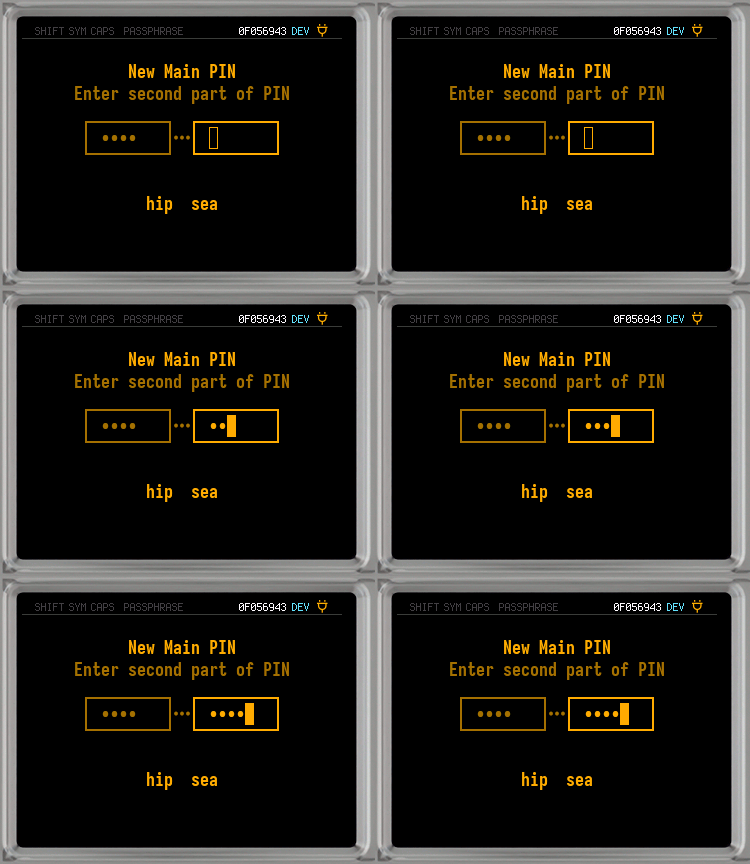
Coldcard uses a two-part PIN. This helps protect you from tampered devices and shoulder surfing.
- You enter the first part, called the prefix.
- Coldcard then shows two anti-phishing words.
- You enter the second part, called the suffix.
Write the two anti-phishing words down and remember them. Every time you unlock the Coldcard, check that the same two words appear after the prefix. If they ever change, the device may have been swapped or tampered with, so stop and do not enter the rest of your PIN.
Choose a PIN you will not forget. Coldcard limits the number of wrong attempts, and after too many the device permanently disables itself to protect your keys. That is not a loss of funds if your seed phrase is safe, but it does mean restoring onto a new device. Do not store the PIN digitally, and if you keep a written reminder, store it separately from your seed phrase.
6. Update Firmware
Download the latest firmware only from Coldcard’s official website, and check the file’s signature or hash as the instructions describe. Then load it onto the device using a microSD card or, on supported models, over USB, and follow the on-screen instructions until the update completes.
Update firmware before you add significant funds, and again whenever a security update is released. Ignore emails or messages urging you to update through a link; fake update prompts are a common phishing tactic, and learning to spot a phishing website is the best defence.
7. Create Your New Wallet and Seed Phrase
This is the core of your Coldcard setup. Choose New Seed Words (or the equivalent new wallet option) on the screen. Coldcard will generate:
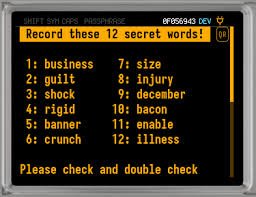
- A 24 word BIP39 seed phrase.
- The option to add a passphrase later (advanced users).
Write your 24 words down on paper, using the wallet backup card or your own secure medium.
Rules:
- Never take photos.
- Never type the seed into your phone or computer.
- Never upload it anywhere.
- Never share it with anyone, for any reason.
Write carefully. You can view the words again later only through the device’s advanced menu after entering your PIN, and a careless copy is the most common reason backups fail. Coldcard then asks you to confirm some of the words to check your copy. For long-term holdings, a metal backup and the advanced seed phrase storage techniques protect against fire and flood, and a tested backup checklist confirms you can restore before you need to.
8. (Optional) Add a Passphrase
A passphrase adds a second layer to your seed. It is an advanced feature, recommended only for users who fully understand how it works.
A passphrase:
- Creates an entirely separate wallet.
- Must be remembered or backed up for as long as you hold the funds.
- Cannot be recovered if forgotten.
If unsure, skip this step. If maximum security isn’t your top priority, you can leave it out; think of it as adding security to your security. If you do use one, back it up separately from the seed words, because anyone with both can access the funds and anyone with neither cannot.
9. Prepare Your MicroSD Card
Coldcard is designed to be used air-gapped, meaning it never has to touch the internet.
You’ll need:
- A microSD card.
- A way to move files between your computer and the card.
You’ll use the card for:
- Signing transactions offline.
- Loading firmware updates.
- Exporting wallet files for your desktop software.
Format it as FAT32 if required. Use a card you keep only for your Coldcard, and never store your seed words on it.
10. Connect to a Software Wallet
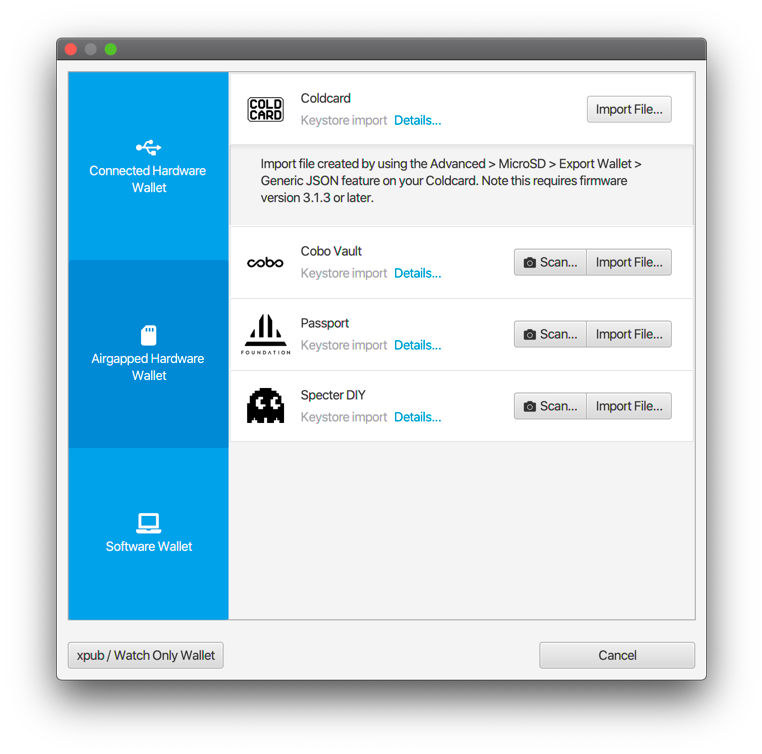
Coldcard does not have its own desktop app. Instead, it works with popular Bitcoin desktop wallets such as:
- Sparrow Wallet.
- Specter Desktop.
- Electrum.
- Nunchuk.
Sparrow is often recommended for beginners. Steps using Sparrow:
- Download Sparrow from its official website and install it on your computer.
- Go to File, then New Wallet.
- Choose to add an air-gapped hardware wallet.
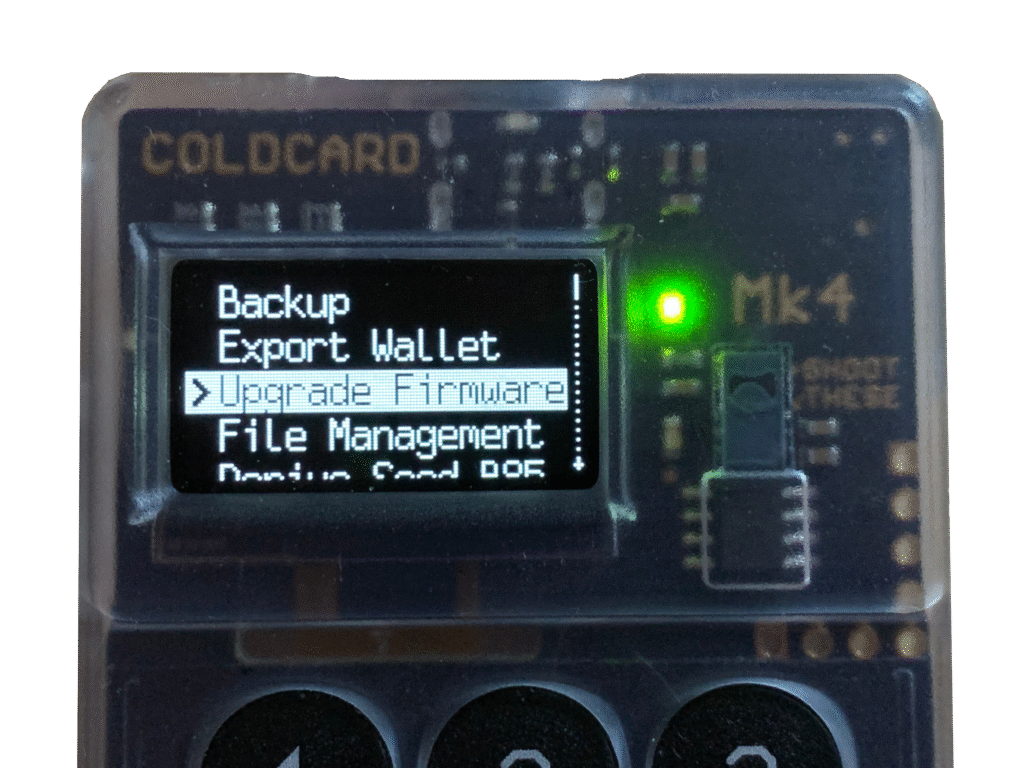
- On the Coldcard, export the wallet file to the microSD card, then load it into Sparrow.
Sparrow builds your wallet view so you can receive and track balances, while the Coldcard stays offline the whole time. The exported file contains your public key information, not your private keys, so it lets Sparrow watch the wallet but not spend from it. Keep it private anyway, because it reveals your balances and addresses.
11. Receiving Bitcoin
- Open Sparrow.
- Click Receive.
- Check the receiving address on your Coldcard screen, not just the computer.
- Send a small test amount first.
Once it confirms, your Coldcard wallet is ready for use. When moving funds off an exchange, follow the steps for sending crypto to a hardware wallet, and the habits for sending and receiving crypto safely apply to every transfer. Never copy a receive address from your transaction history, because address poisoning scams plant lookalike addresses there. Bitcoin transactions wait in the mempool before confirming, and blocks arrive about every ten minutes on average, so allow some time. Bitcoin fees rise and fall with demand, and the trade-offs of a mobile or desktop wallet are worth knowing if you also use Coldcard with a phone app.
12. Sending Bitcoin with Air Gapped Security
Coldcard’s most powerful feature is offline signing. Step by step:
- In Sparrow, create a transaction and save it as a PSBT file.
- Save it to your microSD card.
- Insert the microSD card into the Coldcard.
- Choose Ready To Sign.
- Check the destination address and amount on the Coldcard screen, then sign.
- Insert the card back into your computer.
- Load the signed transaction into Sparrow.
- Broadcast it to the network.
The private keys never touch your computer or the internet. The one thing offline signing cannot protect against is approving the wrong details, so read the screen every time. A compromised computer can try to change the destination, but it cannot change what the Coldcard shows you.
13. Long Term Security Best Practices
To protect your Bitcoin for the long run:
- Keep your Coldcard offline when not in use.
- Store your seed phrase somewhere secure and offline, with a second copy in a separate location.
- Consider a metal backup.
- Keep any passphrase private and backed up separately.
- Keep your PIN private.
- Install firmware updates from the official website.
- Back up your wallet descriptor file if you use Sparrow or Specter.
Coldcard is built for long-term secure storage if managed well. If your Coldcard is lost or damaged, your Bitcoin is still safe as long as your seed phrase is safe: buy a new Coldcard or another BIP39-compatible wallet, restore using your 24 words, and enter your passphrase too if you used one.
Coinkite support will never ask for your seed words, PIN or passphrase. Learn how to avoid crypto scams and avoid fake wallet apps, protect your computer against malware and hacks, and if you suspect a leak, check whether the wallet is compromised and move funds to a new seed straight away. Larger holdings may justify a multisig vault or multi-signature wallet using more than one device, and a paper wallet is an older alternative with real drawbacks.
Keep long-term holdings in cold storage, keep only spending money in a hot wallet, and keep up good wallet hygiene. Use two-factor authentication on exchange accounts, and understand custodial and non-custodial wallets and the risks of keeping crypto on an exchange. The steps to back up a crypto wallet, knowing what to do if you lose access, and estate planning make sure your Bitcoin is never lost with the device. If you hold more than Bitcoin, the setup guides for Ledger, BitBox, SafePal and Tangem cover multi-asset devices.
Frequently Asked Questions
What is the Coldcard wallet?
Coldcard is a Bitcoin-only hardware wallet made by Coinkite, designed for advanced users who prioritise maximum security. It features air-gapped operation via microSD card, a secure element chip, anti-phishing PIN system, and open-source firmware.
How do I set up a Coldcard wallet?
Check the tamper-evident bag, power on the Coldcard and confirm the bag number on screen matches the bag, set your two-part PIN and note the two anti-phishing words shown after the first part, update the firmware, generate a new 24-word seed phrase, write it down carefully, confirm it on the device, and store it securely offline.
What makes Coldcard different from other hardware wallets?
Coldcard is air-gapped, meaning it can operate entirely without a USB connection using microSD cards to transfer signed transactions. It supports advanced features like multisig, BIP-39 passphrase, duress PINs, and brick-me PINs that destroy the device if triggered.
Is Coldcard only for Bitcoin?
Yes. Coldcard is a Bitcoin-only device by design. This simplicity reduces the attack surface and codebase complexity, which is a deliberate security choice. Users who need multi-asset support should consider other hardware wallets.
What is the anti-phishing PIN on Coldcard?
When setting up a Coldcard, you choose a PIN split into two parts. After entering the first part, the device displays two secret words unique to your device. These words verify you are interacting with your real device and not a phishing replica.
Is Coldcard suitable for beginners?
Coldcard is designed for Bitcoin users who want maximum security and are comfortable with a more technical, air-gapped setup. Beginners may find devices such as Ledger or BitBox more approachable while still getting strong cold storage security.
What should I do if I lose my Coldcard device?
With your seed phrase stored securely, you can restore your wallet to any new Coldcard or compatible Bitcoin wallet. Purchase replacement devices only from the official Coinkite website to ensure device integrity.
Where should I buy a Coldcard wallet?
Purchase only from the official Coinkite website. Coldcard devices ship in tamper-evident sealed bags with a unique bag number you can verify before setup. Never buy from third-party resellers or second-hand markets.