
Shepley Capital

WALLETS & SECURITY
Wallets and Security - Cryptopedia by Shepley Capital

BitBox Wallet Setup Guide

This is your complete BitBox Wallet setup guide – From Pre Unboxing Checks to Full Activation.

Shepley Capital is in no way affiliated with BitBox. Be sure to select the cryptocurrency wallet that is right for you.

BitBox hardware wallet - Shepley Capital

1. Before You Unbox Your BitBox

Buy from an authorised source
Only purchase directly from Shift Crypto or a certified reseller. This removes the risk of tampered hardware.

Inspect the packaging

The BitBox02 uses a tamper evident, sealed box with no shrink wrap. Look for:

  • Clean, sealed edges
  • No unusual glue marks
  • No signs of the box being opened or pressed in

Confirm you received the microSD card
BitBox02 uses a microSD card for its backup system. It should be included and sealed. If missing, do not proceed.

Make sure you have a safe, private setup environment
No cameras, no people watching, no distractions. Your backup phrase and wallet PIN must be created in private.

2. Unboxing Your BitBox

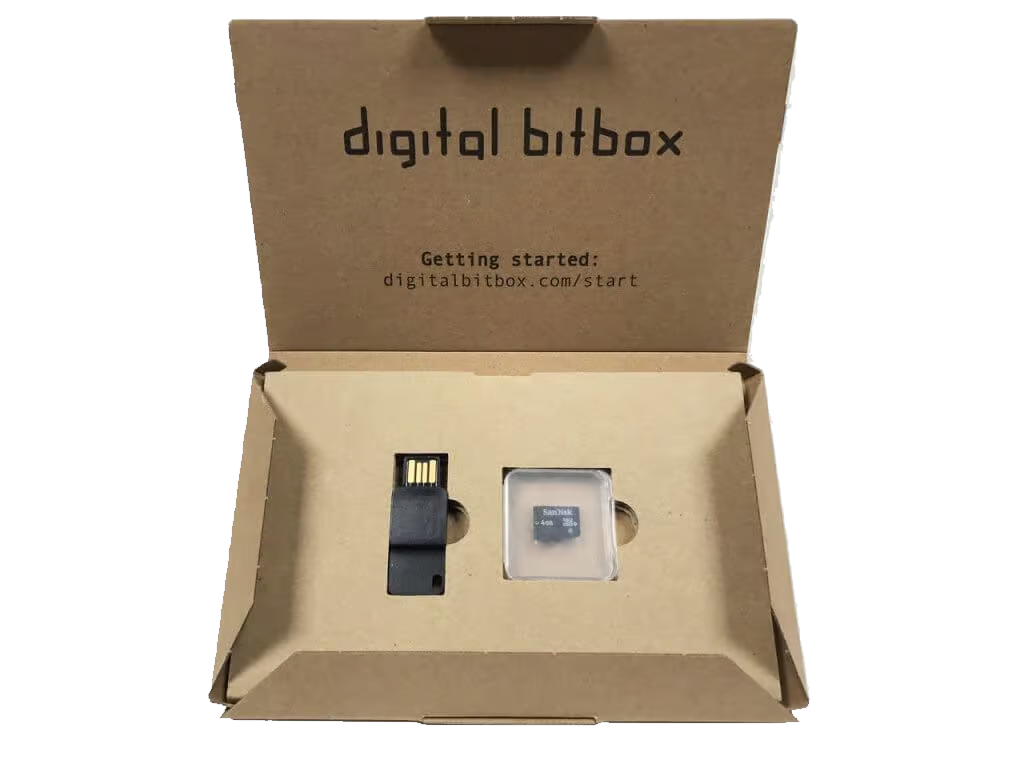
Inside you’ll find:

  • BitBox02 hardware wallet
  • USB C extension cable
  • MicroSD card
  • Documentation and quick start guide

Remove everything carefully, but keep the box in case you ever need product proof or warranty claims.

Unboxing the BitBox hardware wallet

3. Launching Your BitBox

Download the BitBoxApp

  • Go to the official website only.
  • Install for Windows, macOS, or Linux.
  • This app handles firmware updates, wallet creation and sending or receiving crypto.


Plug in the BitBox02

  • Use the included USB C cable if your computer does not have a USB C port.
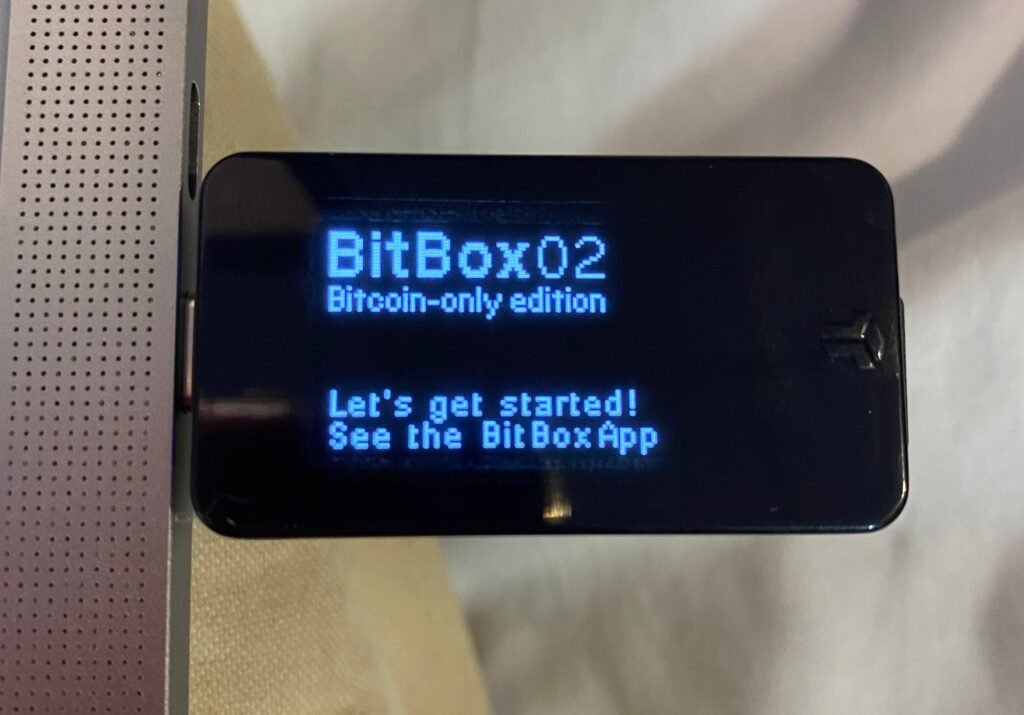
  • The screen on the device should light up immediately. If it doesn’t, unplug and try a different port.
BitBox hardware wallet first startup screen

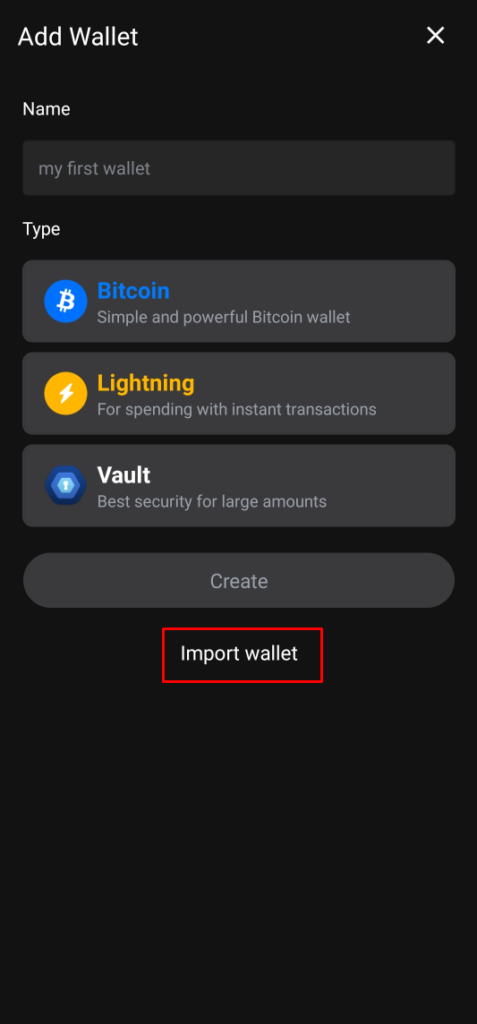
3. Create a New Wallet

When the app detects your device, select Create New Wallet.

You’ll then be asked to:

Set your device password

  • This password encrypts access to the device. Choose something unique, long, and private.
  • Do not reuse a password from anywhere else.


Confirm the creation on the BitBox02 itself

  • The touch sensors on the sides let you confirm actions securely.
Creating a wallet on BitBox hardware wallet

4. Create Your Wallet Backup

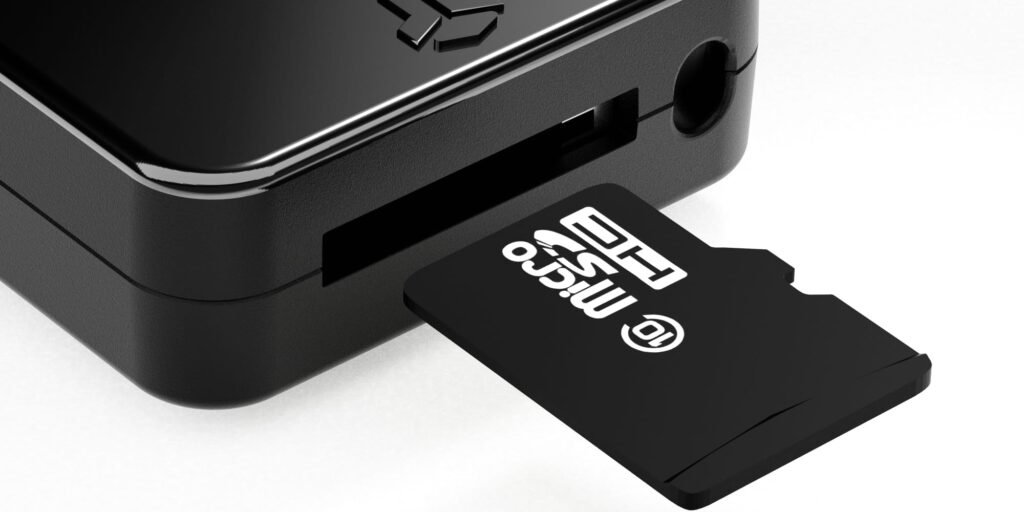
The BitBox02 uses the microSD card as a secure, offline backup.

Insert the card when prompted.
The device will automatically create an encrypted backup file.

Important:

  • This backup file is your lifeline if you lose or break your device.
  • Store it somewhere physically safe, like a locked drawer or safe.
  • Never store the file on your computer or cloud storage.

You can create additional backups onto more SD cards if you want extra redundancy.

BitBox microSD card setup for encrypted backup

5. Update Wallet Firmware

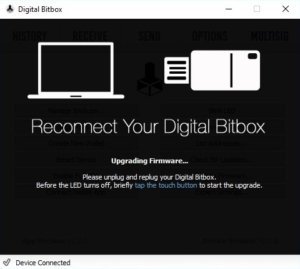
If the app asks you to update firmware, do it now.

  • This ensures you’re on the latest security version.


Confirm the update on the device.

  • Once installed, the BitBox02 will restart.
Updating firmware on BitBox hardware wallet

6. Add Your Coins

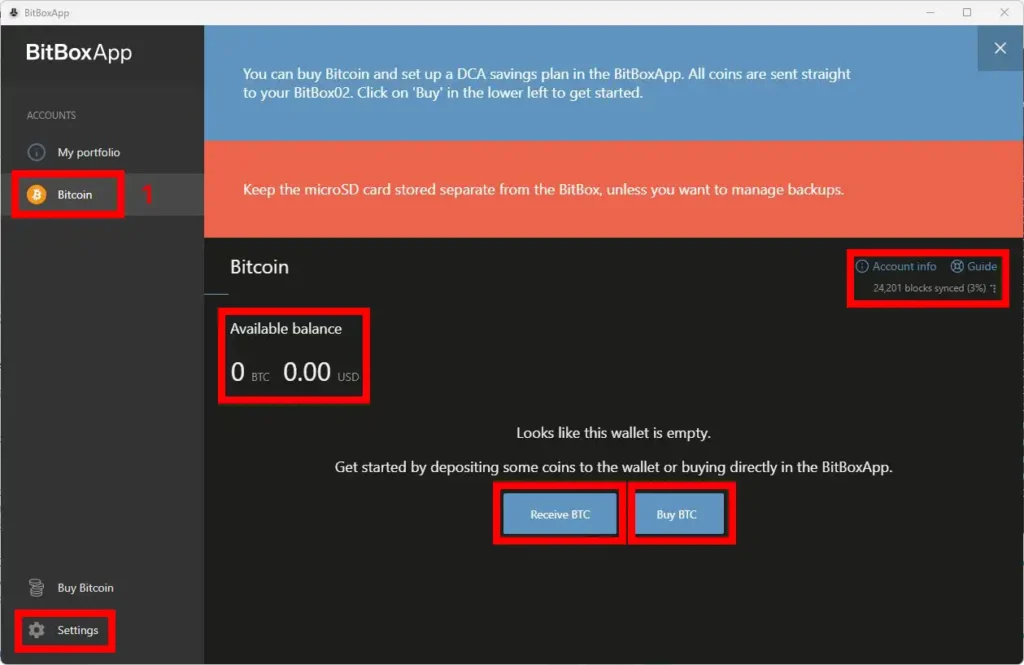
BitBox supports BTC, LTC, ETH, and ERC 20 tokens.

You can enable or disable coins in the app.

  • Pick what you want to manage on this device.


Each coin generates its own wallet internally and uses the same secure backup.

Buying cryptocurrency through BitBox app

7. Receive Your First Crypto

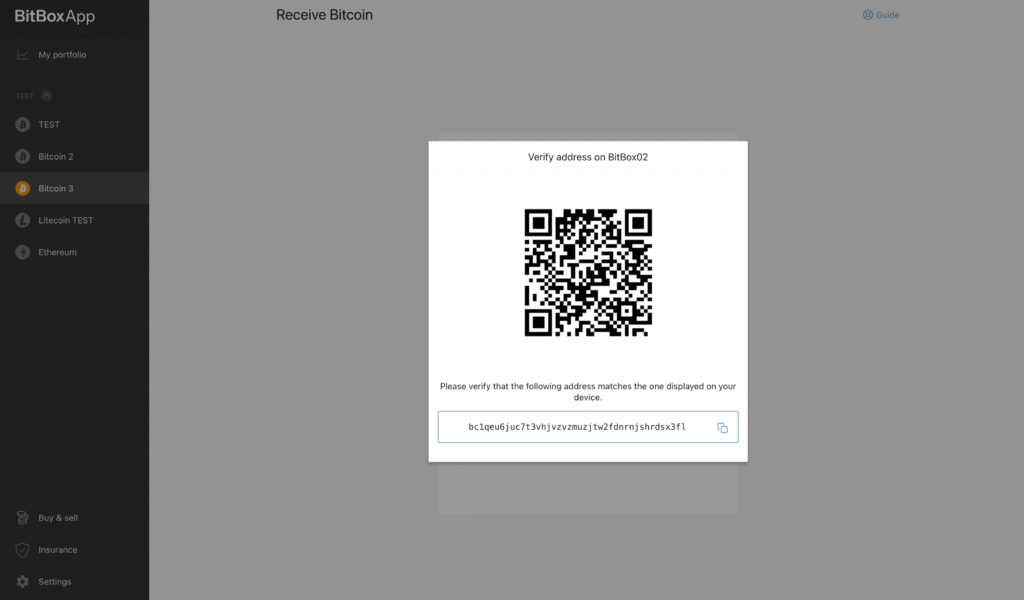
Select Receive for the asset you want.

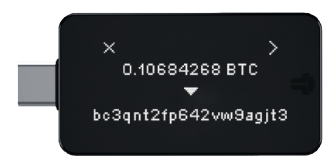
  • You’ll see a QR code and wallet address.


Always verify the address on the BitBox02 screen itself.

  • This prevents malware from swapping addresses on your computer.


Send a small test amount first, then send your full transaction once you confirm everything is correct.

Receiving Bitcoin on BitBox hardware wallet

8. Secure Your Device and Backup

To finish your setup properly, do these final steps:

Set a device password you never store digitally

  • Write it on paper if needed, but keep it safe.


Make an additional microSD backup

  • Store these backups in different physical locations.


Turn on optional security features

  • Inside the app settings, you can enable:
  • Device lock timeout
  • Expert mode for advanced verification
  • Optional passphrase for added protection

Store the BitBox somewhere safe
Treat it the same way you’d treat cash, gold, or important documents.

Your BitBox is Ready!

Frequently Asked Questions

What is the BitBox wallet?

BitBox is a hardware wallet brand developed by Shift Crypto, a Swiss company. The BitBox02 is their flagship device, known for its minimalist design, open-source firmware, and strong focus on privacy and security. It comes in Bitcoin-only and multi-edition versions.

How do I set up a BitBox02 hardware wallet?

Connect the BitBox02 to your computer via USB-C, install the BitBoxApp, follow the on-screen setup wizard to create a new wallet, write down your seed phrase carefully, verify it on the device, and set a device password to complete setup.

What is the Bitcoin-only edition of BitBox02?

The Bitcoin-only edition of BitBox02 has firmware that exclusively supports Bitcoin, reducing the attack surface compared to multi-asset devices. It is recommended for users who only hold Bitcoin and want maximum security and simplicity.

Is BitBox open source?

Yes. BitBox firmware and the BitBoxApp are fully open source, allowing independent security researchers to audit the code. This transparency is considered a major security advantage over closed-source alternatives.

Does BitBox support a passphrase?

Yes. BitBox02 supports an optional BIP-39 passphrase, adding a 25th word to your seed phrase that creates a completely separate hidden wallet. This provides an additional layer of protection if your seed phrase is ever discovered.

What cryptocurrencies does BitBox02 support?

The multi-edition BitBox02 supports Bitcoin, Ethereum, Litecoin, and ERC-20 tokens. The Bitcoin-only edition is limited to Bitcoin. Check the official BitBox website for the current full list of supported assets.

What should I do if I lose my BitBox device?

As long as you have your seed phrase stored safely, you can restore your wallet on a new BitBox02 or any compatible hardware or software wallet. Purchase a replacement device only from the official BitBox website or authorised resellers.

Where should I buy a BitBox wallet?

Purchase only from the official Shift Crypto website or authorised resellers. Buying from third-party sellers risks receiving a device that has been tampered with, potentially compromising your private keys from the moment of setup.


WRITTEN & REVIEWED BY Chris Shepley

UPDATED: AUGUST 2026

Choose your next topic from our Cryptopedia​

Grow your crypto portfolio with the latest insights, straight to your inbox!

Join 10,150+ CEOs, Business Owners, Parents, Students, & more receiving actionable crypto insights to grow their portfolios.