Shepley Capital

WALLETS & SECURITY

Wallets and Security - Cryptopedia by Shepley Capital

SafePal Wallet Setup Guide

This is your complete Trezor Wallet setup guide – From Pre Unboxing Checks to Full Activation.

Shepley Capital is in no way affiliated with Trezor. Be sure to select the cryptocurrency wallet that is right for you.

SafePal hardware wallet - Shepley Capital

1. Before You Unbox Your SafePal

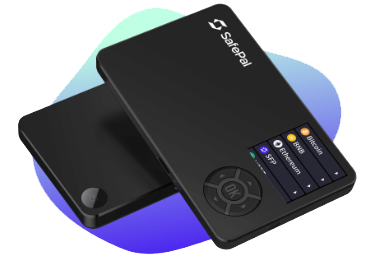
SafePal is a mobile first, QR code based hardware wallet backed by Binance Labs. It aims to give everyday investors a secure, low cost alternative to storing crypto without connecting directly to a computer.

Before setting it up, you need to confirm authenticity.

Buy only from official channels

  • SafePal official website
  • Approved resellers listed by SafePal
  • Avoid marketplace sellers and all second hand devices

Inspect the packaging

SafePal devices come sealed with:

  • A shrink wrapped outer layer
  • A tamper evident sticker
  • A box that should not appear opened or re glued

If anything looks off, contact SafePal immediately.

Verify the scratch off security code

SafePal boxes include a scratch panel containing a security code.
You can verify this code on the SafePal website to confirm authenticity.

Do not proceed until the device is confirmed genuine.

2. Unboxing Your SafePal

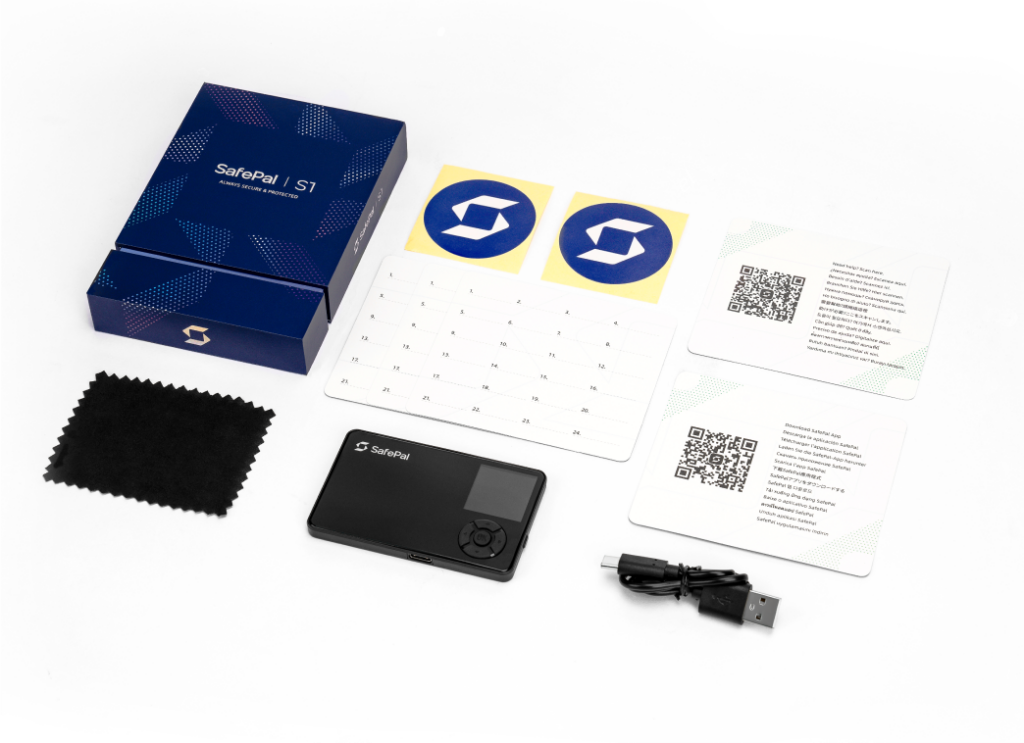
Inside the box you should find:

  • SafePal S1 hardware wallet
  • USB charging cable
  • Recovery seed phrase cards
  • Instruction card
  • Stickers and accessories

SafePal never ships with a pre generated recovery phrase. If yours includes printed recovery words, treat it as unsafe.

Unboxing SafePal hardware wallet

3. First Time Power On

Press and hold the power button to turn on the device. Make sure the device is fully charged before first use to ensure no disruptions during the seed generation stage.

You’ll be prompted to choose:

  • Language
  • Basic settings
  • Connection preferences

SafePal is designed to be used offline, signing transactions using QR codes through its built in camera.

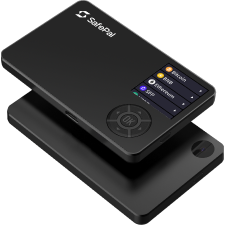
SafePal hardware wallet powered on and ready to setup

4. Install the SafePal App (Required)

SafePal hardware wallets work in combination with the SafePal mobile app, which acts as the interface.

Available on:

  • Apple App Store
  • Google Play Store
  • SafePal website (Android APK)

Install it on a phone you trust, ideally one without malware or shady apps.

Open the app and create a strong login password. (Optional biometric lock)

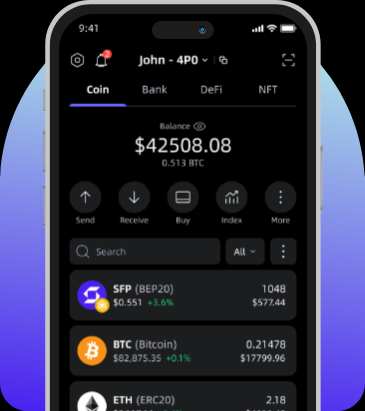
SafePal app showing crypto portfolio

5. Pair SafePal Wallet with the App

This is done safely using QR codes, not Bluetooth or USB.

Steps:

  1. In the app, choose Add Hardware Wallet.

  2. Scan the QR code displayed by the app using the SafePal hardware wallet camera.

  3. The app and device will establish a relationship without touching the internet.

This process does not expose private keys.

SafePal app download from app store

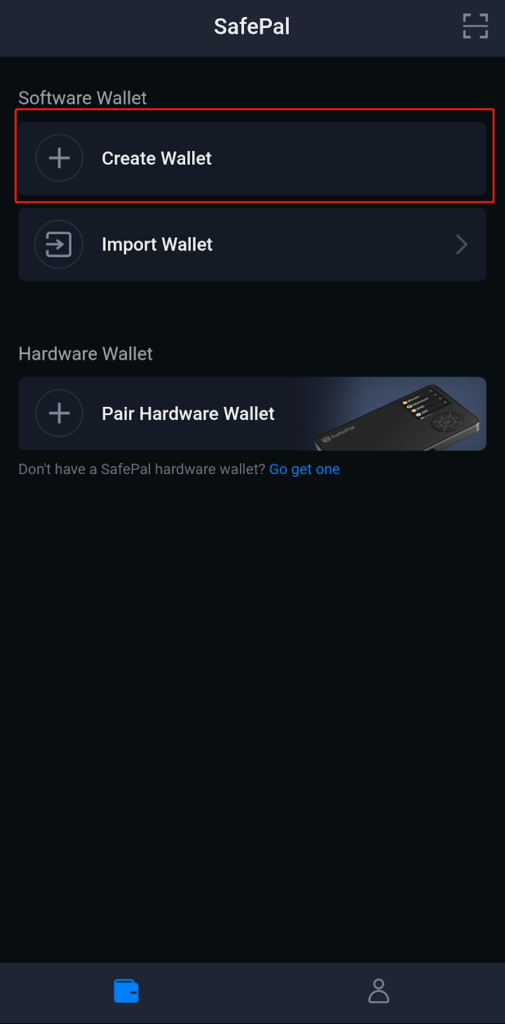
6. Create Your New Wallet

Choose Create New Wallet on the SafePal device.

The wallet will generate a:

  • 12 or 24 word recovery seed phrase
  • Optional passphrase feature (advanced)


Write your seed phrase on the provided cards

Rules:

  • Never take photos
  • Never store it digitally
  • Never type it into a computer
  • Keep multiple copies in secure locations
  • Never share seed phrase with anyone.
  • Treat it like the master key to your money


After writing it down, the device will ask you to confirm the words in random order.

Creating a new wallet on SafePal hardware wallet

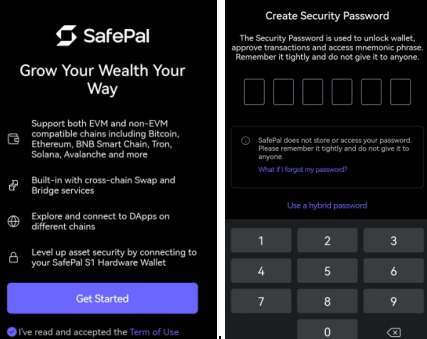
7. Set a Security Password (On the Device)

This password will protect access to the hardware wallet itself.
Choose a secure but memorable password.

Avoid:

  • Birthdays
  • Repeating digits
  • Simple patterns

Write it down temporarily until memorised.

Setting a password on SafePal hardware wallet

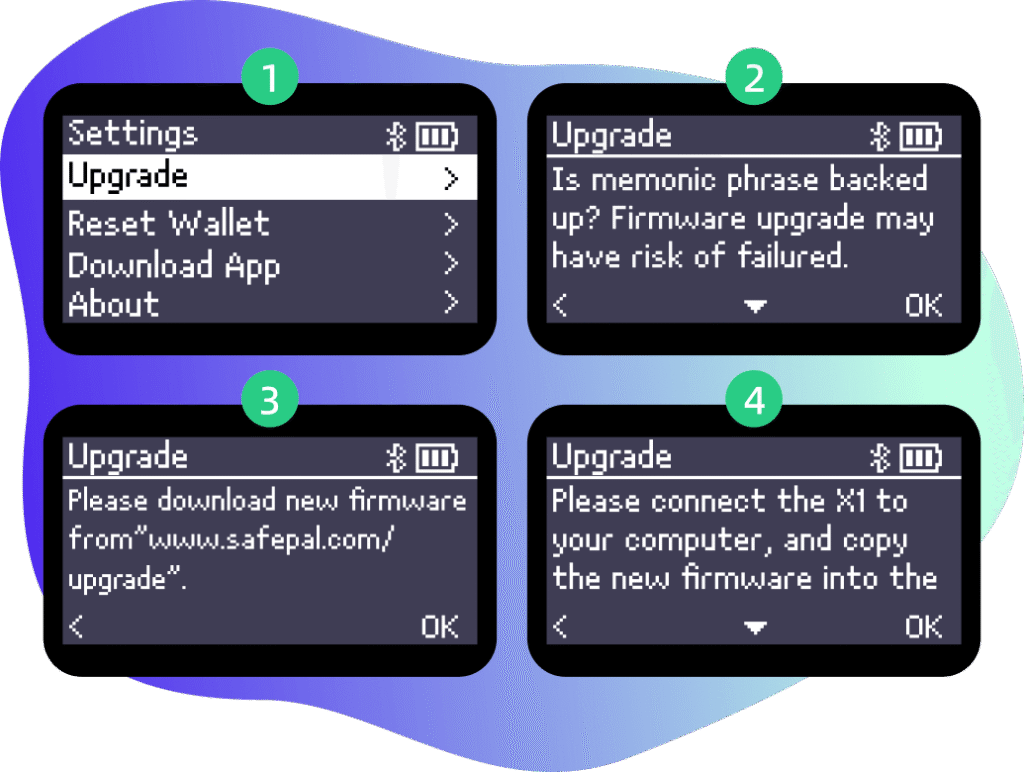
8. Update Firmware

Open the SafePal app and go to the hardware wallet settings.

Steps:

  1. Download the latest firmware file onto your phone through the app.

  2. The app will generate a QR code with the firmware data.

  3. Scan the QR code using the SafePal hardware wallet camera.

  4. Let the firmware install.

SafePal updates always flow from the app into the device via QR, keeping your wallet offline.

Updating firmware on SafePal hardware wallet

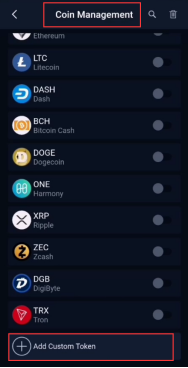
9. Add Coins to Your Wallet

SafePal supports dozens of networks including BTC, ETH, BNB, SOL, AVAX, MATIC, ERC20, BEP20, SPL, & NFT’s.

In the app:

  1. Tap Add Asset
  2. Select the blockchain
  3. The app will sync with your hardware wallet

Your keys stay offline, the app handles viewing and sending.

Adding cryptocurrencies to SafePal hardware wallet

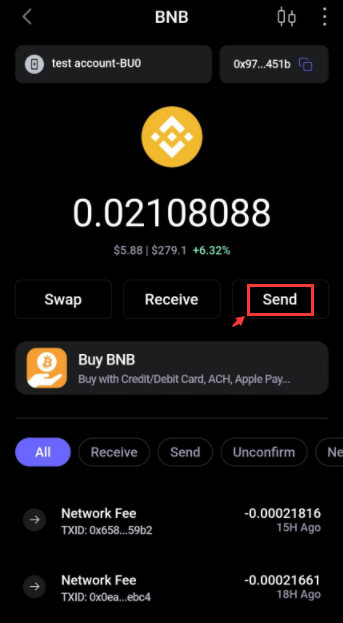
10. Send & Receive Crypto

Sending Crypto

SafePal uses a QR code signing flow that keeps your keys offline.

Steps:

  1. In the app, create your transaction
  2. The app will show an unsigned transaction QR
  3. Scan it with your hardware wallet
  4. Confirm the details on the SafePal screen
  5. Approve the transaction
  6. The SafePal generates a signed QR code
  7. Scan that QR code back into the app
  8. The app broadcasts to the blockchain

Your private keys never leave the device.

Receiving Crypto:

  1. In the SafePal app, select the asset
  2. Tap Receive
  3. Show your address
  4. Double check the address on the hardware wallet screen
  5. Share the address or receive via QR code
  6. Optional test deposit recommended

Your SafePal device will not need to be online to receive crypto.

Sending crypto from SafePal hardware wallet

11. Using DeFi, DApps, & NFT's

SafePal supports:

  • Uniswap
  • PancakeSwap
  • OpenSea (via mobile browser)
  • Staking platforms
  • Web3 dApps
  • NFT storage
  • Binance DEX
  • Many multi chain ecosystems

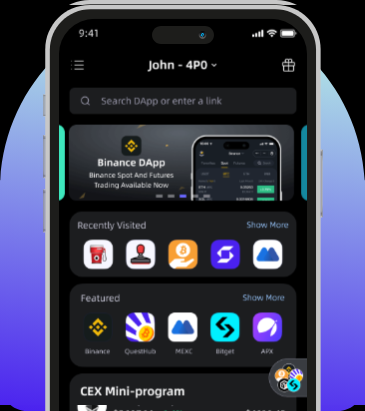
Inside the app, you can use SafePal browser or WalletConnect for access.

Transactions still require signing on hardware.

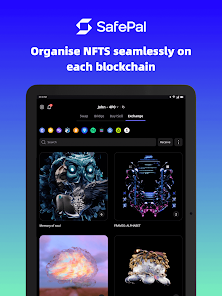
Managing NFTs on SafePal hardware wallet

12. Backup and Recovery Options

SafePal allows:

  • Standard 12 or 24 word seed backup
  • Optional passphrase wallet
  • Encrypted offline backup export

If your SafePal device is lost:

  • Reinstall with your seed on any SafePal or BIP39 compatible wallet
  • If you added a passphrase, it must also be entered

Your seed phrase is the ultimate backup.

13. Long Term Storage Best Practices

SafePal is secure, but improve your protection with these steps:

  • Keep your device powered off when not in use
  • Store seed phrase offline and distributed
  • Add a strong passphrase only if you understand it
  • Keep your phone updated and free of malware
  • Use a dedicated phone for crypto if possible
  • Do regular firmware updates
  • Use 2FA on your exchange accounts


SafePal plus good habits equals strong long term safety.

Your SafePal is Ready!

WRITTEN & REVIEWED BY Chris Shepley

UPDATED: MARCH 2026

Choose your next topic from our Cryptopedia​